Guides / Music, overlays and your own media
Music, overlays and your own media
Make music for your edit with Highlix Composer, add overlay packs, and import your own music, videos, pictures and overlays.
Rights reminder: only use music, videos, pictures and overlays that you own or have permission to use. Highlix can't check rights for you, and you're responsible for what you publish.
Music made for your edit: Highlix Composer
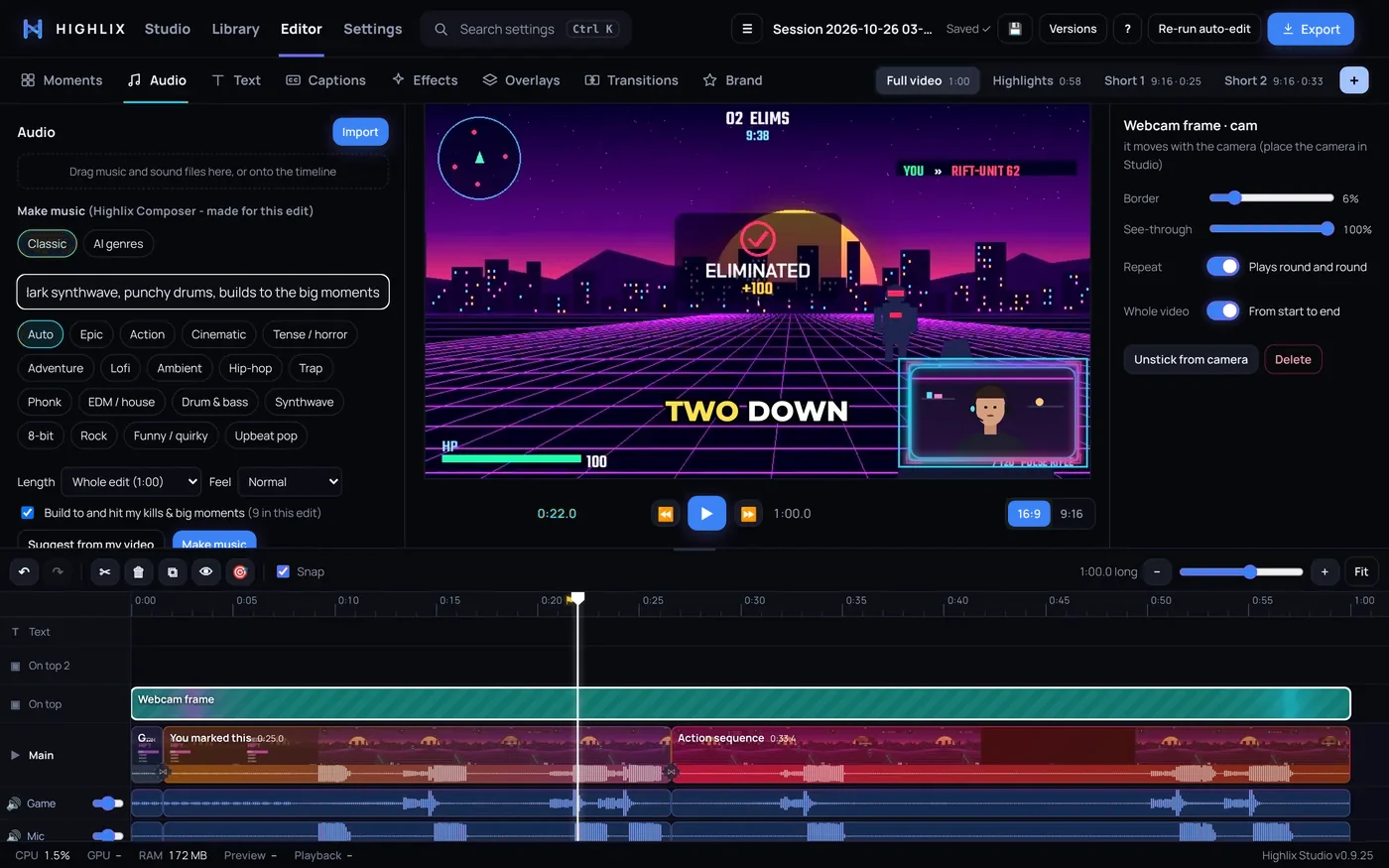
- Open Audio → Make musicDescribe what you want (“dark synthwave, punchy drums”), or pick a style such as Epic, Action, Synthwave, Lofi, Trap or Rock. Or leave it on Auto.
- Choose the lengthFit the whole video, or a number of seconds. Composer plans the tempo so the video's big moments land on the beat and the last chord lands just before the end.
- Make itThe track is written on your PC and played on recorded instruments: orchestra, piano, drums, guitars and more. Press + to put it on the timeline, then trim, fade or split it like any music clip.
- ExportIf a track uses an instrument whose licence asks for a credit, Highlix saves
<video name> - credits.txtnext to the video with the line to paste into your description.
- The recorded instruments are downloaded the first time you make music, so you need to be online once.
- AI genres (optional) re-performs the music in a genre with an AI model that runs on your PC. It needs an NVIDIA graphics card and a one-off download of about 10 GB.
- You can also import your own music, as long as you have the rights to use it.
Import your own music, videos and pictures
- Videos and pictures: drag them in from Explorer onto the editor, or press Import or Browse in the Media tab. Drag a video onto the timeline or press + Add. It becomes a section like any other.
- Music and sounds: drag them onto the Audio tab or press Import. They appear under “Your music & sounds”.
- Your files stay on your PC and Highlix uses them where they are. Removing one with ✕ removes it from Highlix's lists and edits and deletes only Highlix's own preview copies, never your original.
- Imported videos stay when you re-run the auto-edit.
- Imported videos get the full editor. See editing your own videos.
Overlay packs
There are four original packs, plus a Basics set: Neon Pulse (neon / cyber), Tactical Ops, Clean Cut and Retro Drive. Each includes animated webcam frames, a stinger transition with its own whoosh, intro and outro screens, Subscribe, Follow and Like pop-ups, a lower third with your name, and kill callouts. They were made for Highlix and are free to use in your videos. Every pack also has Starting soon, Be right back and Ending screens (16:9 and 9:16, with your own words), a chat box frame, a goal bar, a socials bar with your @name, a game stats panel, follower and subscriber alerts, and square and tall webcam frames.
- Open the Overlays tab and pick a pack
- Choose how much to useOpen Use the whole pack on this video and tick the parts you want: webcam frame, transitions at every cut, intro, outro, Subscribe / Like pop-ups, lower third, kill callouts. Choose On this version or …on every version.
- Or add single piecesPress + on any tile. Everything becomes an ordinary item you can move, resize or delete.
- Take it off again“Take it off” removes the whole pack in one go.
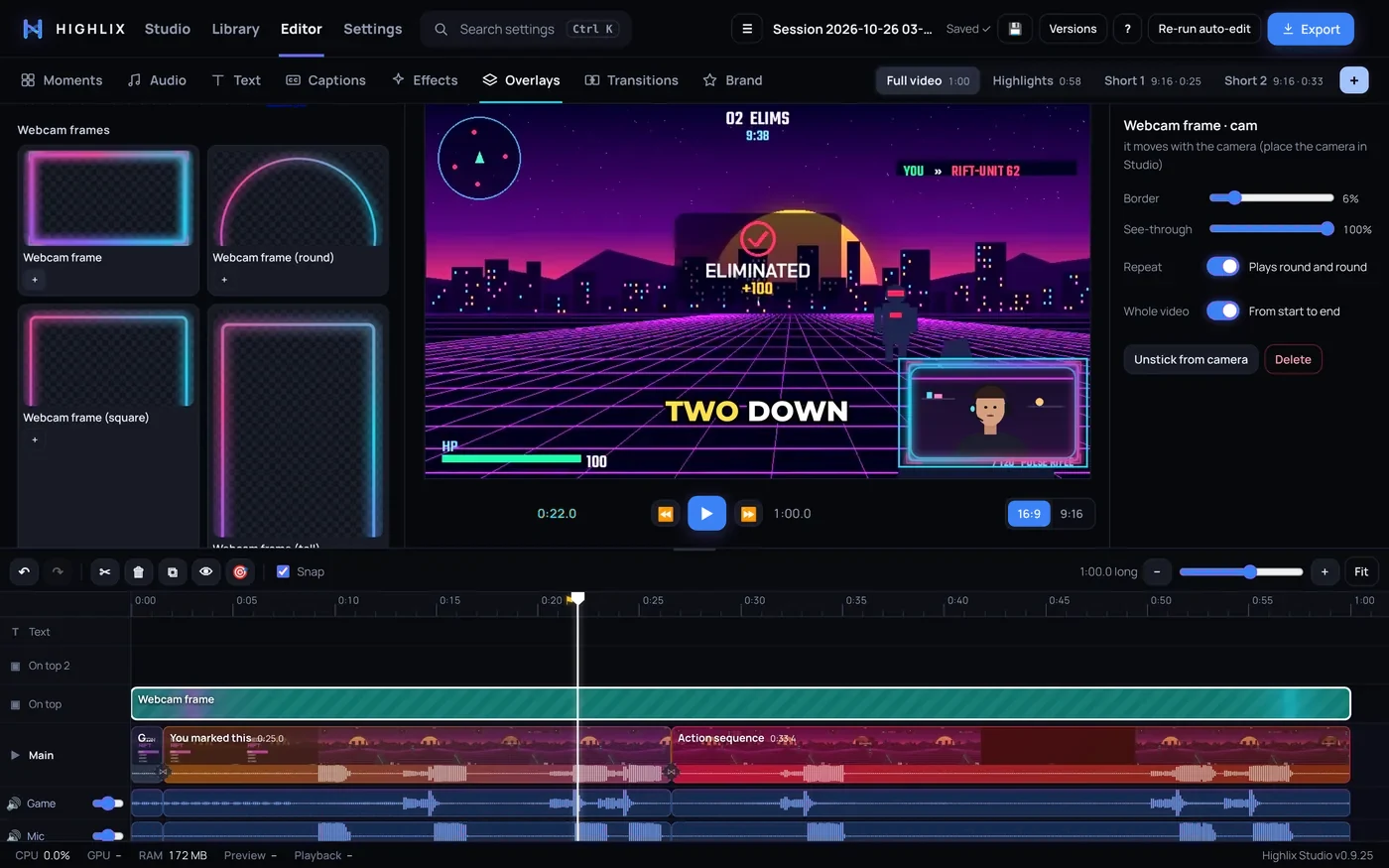
Press Import… in the Overlays tab to bring in your own overlay packs.
Brand kit
In the Brand tab, set your logo (corner, size and opacity), a frame, an intro and an outro. Apply them with one click, or have them added to every auto-edit. The brand goes on edited videos and Studio layouts only.